Copy Paste
Your ready-to-use clipboard.
Save the texts you type over and over, and paste any of them with one tap — from a keyboard that works inside every app on your iPhone.
Download on the App StoreComing soon
You know the text by heart, and you still go looking for it.
Your bank details are in a note. The hashtag set is under an old post. The address is somewhere in a chat from three weeks ago. Every time you need one you leave what you were doing, open another app, scroll, select, copy, come back, and hope you got the whole thing.
Copy Paste keeps those texts in one place and puts them one tap away, without leaving the app you were typing in.
What Copy Paste does
Texts you write once.
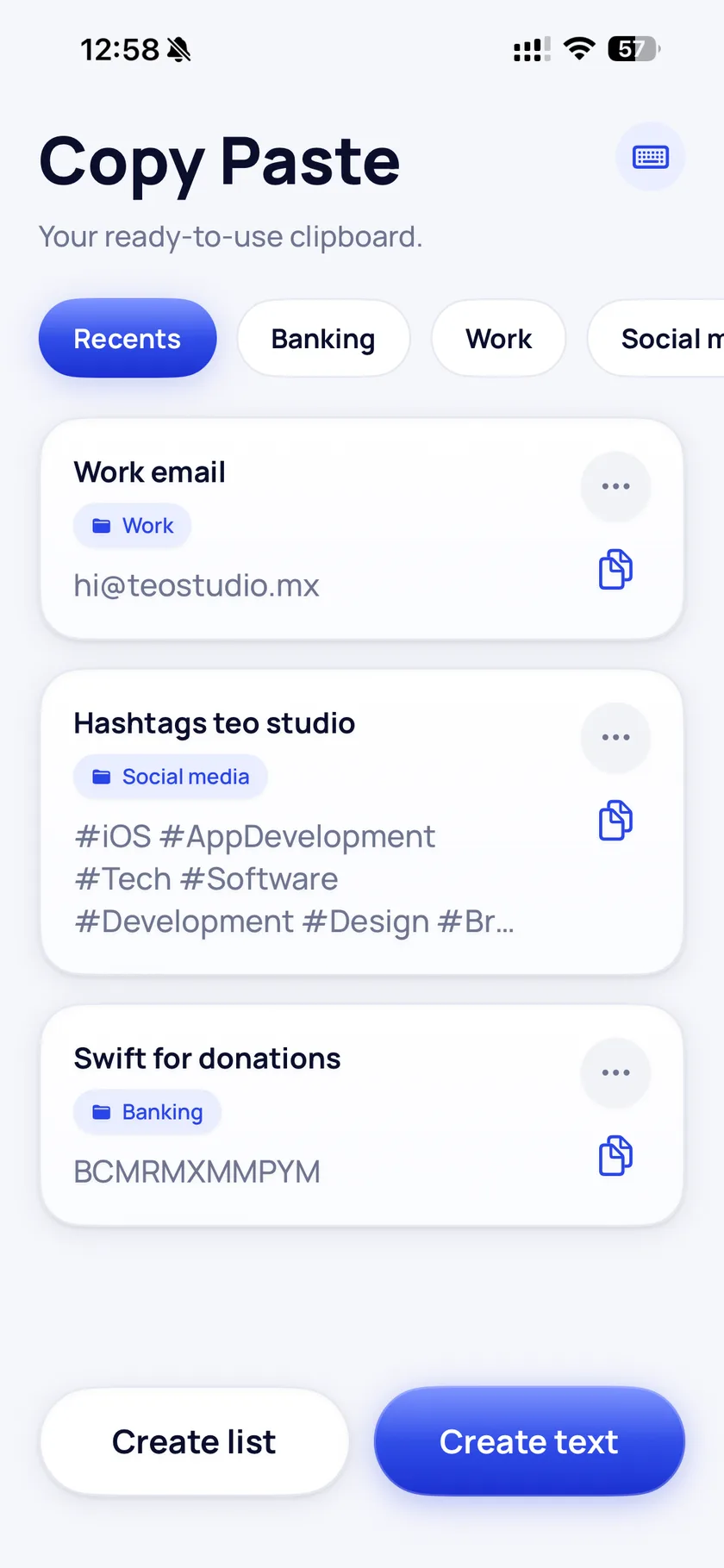
Bank details, hashtag sets, canned replies, addresses, email addresses. Save each one under a name you will recognize later, and it stays ready to use.
Lists that match how you think.
Group your texts into your own lists — Banking, Work, Social media — so the one you need is where you expect it to be, not at the bottom of a single long pile.
A keyboard, so it works everywhere.
Copy Paste installs a custom keyboard. Hold the globe key in any app, pick it, tap a text, and the text lands where the cursor already was. No app switching, no going back to check you copied the whole thing.
Nothing leaves your phone.
No account, no sign-up, no server. Your texts are stored on your device and nowhere else. There is no analytics, no tracking, no advertising and no third-party SDKs in the app.
One tap, in any app
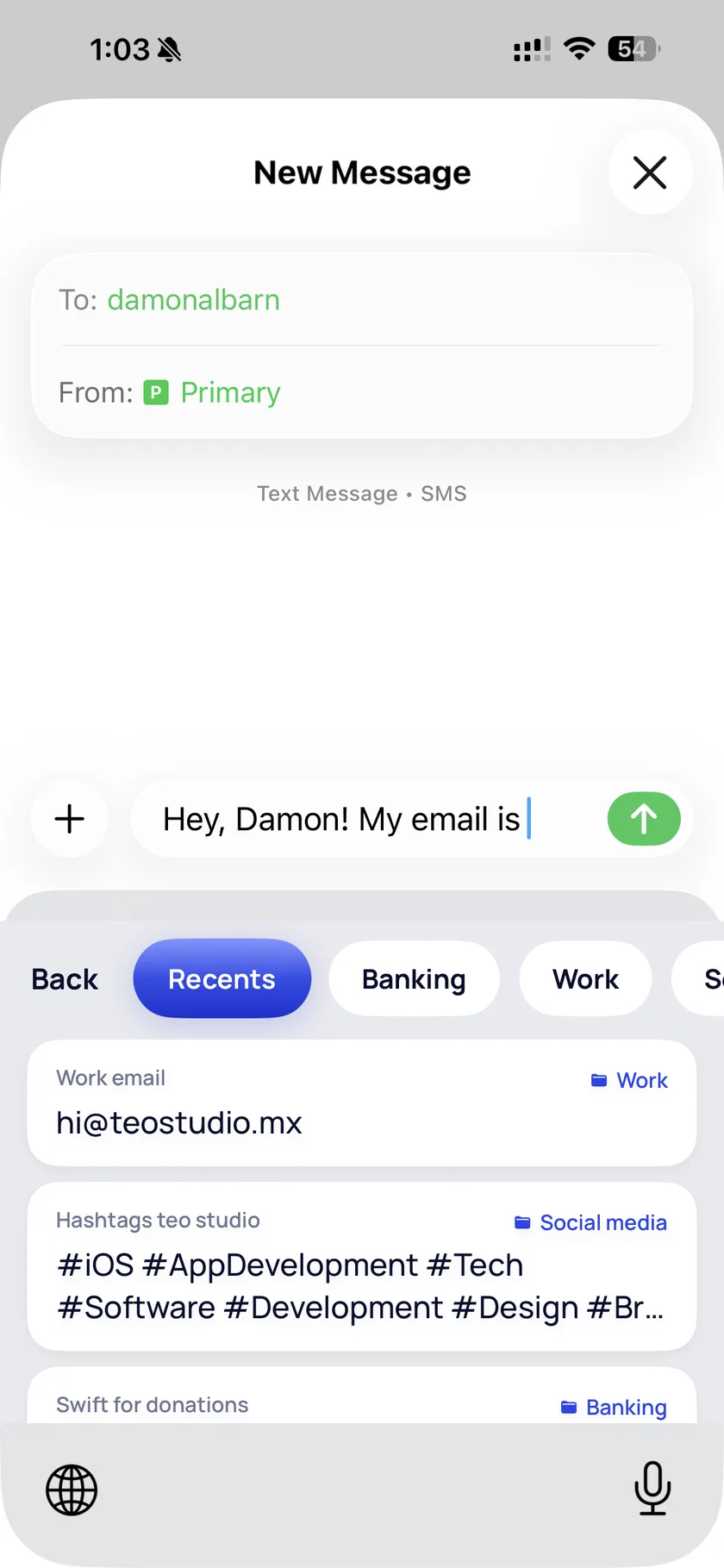
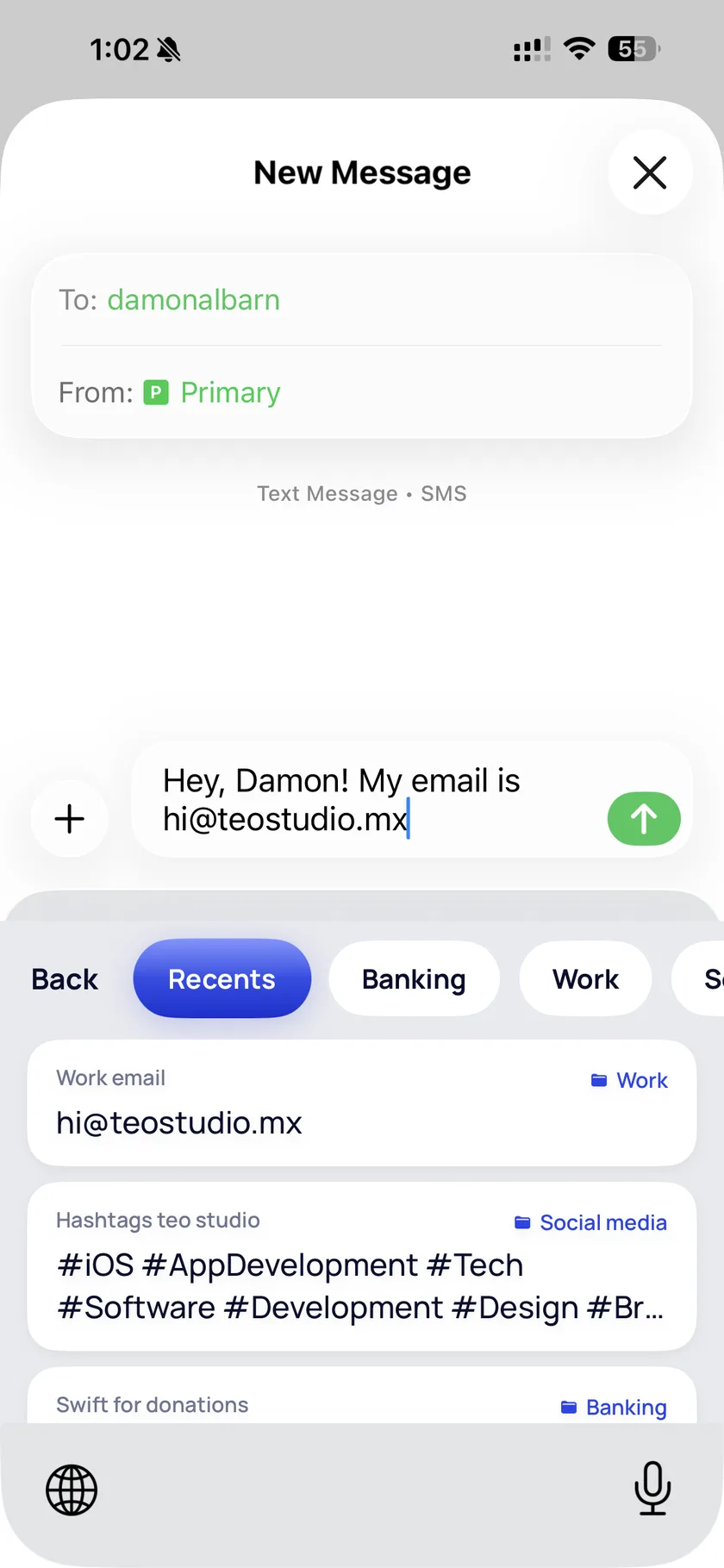
Here it is in Messages. The message is half typed, the Copy Paste keyboard is open on your saved texts, and one tap on “Work email” finishes the sentence.
Before
After
How it works
Save a text
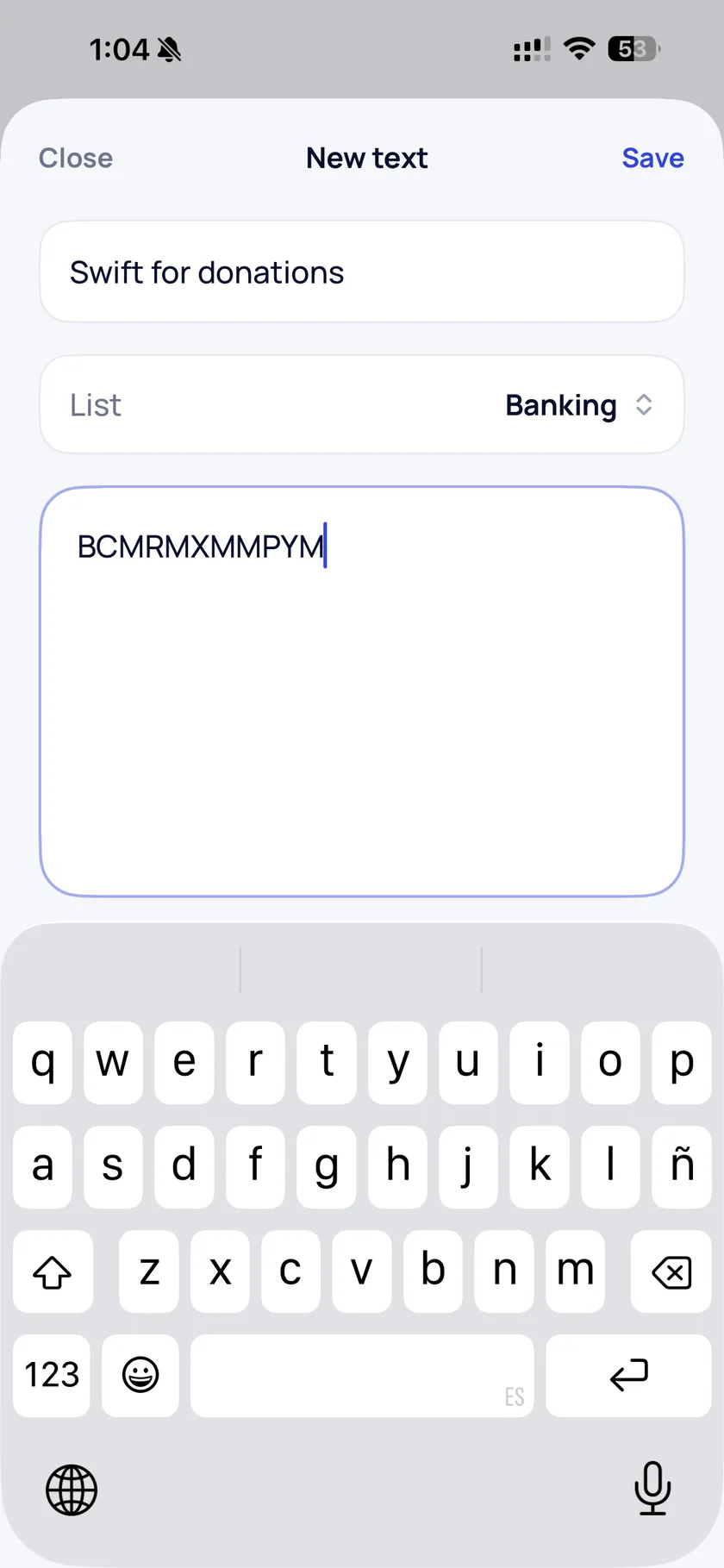
Give it a name, choose a list, and paste or type the content. That is the whole setup for each text.
Turn on the keyboard
In Settings → General → Keyboard → Keyboards, add Copy Paste, then switch on Allow Full Access so the keyboard can read the texts you saved.
Reach it from anywhere
In any app, hold the globe key on your keyboard and choose Copy Paste. Your lists appear right where the keyboard was.
Tap to paste
Tap the text you need and it appears where you were typing. One tap, no leaving the app.
The keyboard never records what you type.
Installing a third-party keyboard raises a fair question: can it see everything I type? For Copy Paste the answer is no.
iOS asks for Full Access for one reason only: it is what lets the keyboard read the texts you saved in the app. That permission is the bridge between the two halves of Copy Paste, and nothing else. The keyboard does not log, store or transmit anything you type — not in Copy Paste, and not in any other app.
Your clipboard works the same way. Copy Paste reads it only when you tap the save button on the suggestion it shows you on screen. It never reads your clipboard in the background.
Price
Free for 7 days. After the trial, Copy Paste costs $9.99 USD per year.
Payment is handled by Apple through the App Store, so we never see your card or payment details. Prices in other countries are set by Apple’s regional pricing and may differ. You can cancel any time in Settings → your name → Subscriptions.